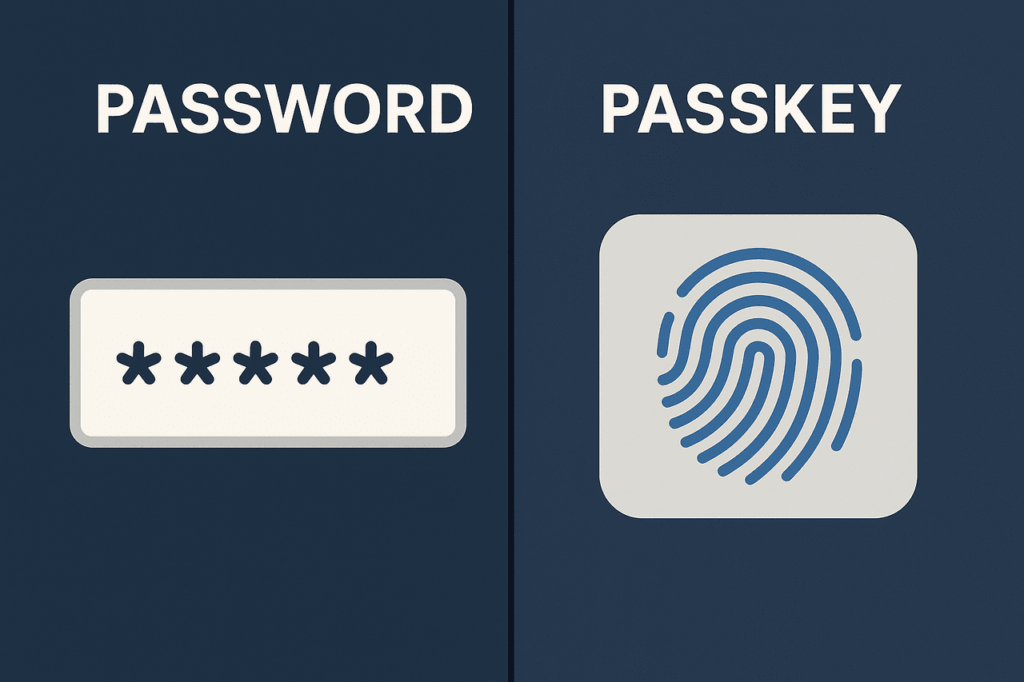
Passkeys vs passwords comes down to one point: a passkey cannot be guessed, reused or handed over to a fake website, while a password can. A passkey uses your device unlock, such as a fingerprint, face scan or PIN, to sign you in. Passkeys are safer for most people, and you can switch one account at a time.
Most people now manage dozens of online accounts, and each one asks for a password. We reuse them, forget them and reset them again and again. Attackers know this, and they build entire scams around it. A newer sign in method called a passkey is designed to remove that weak point.
This guide explains passkeys vs passwords in plain English. You will learn what a passkey is, how it compares with a password, where the risks sit and how to switch your most important accounts, one step at a time.
What Are Passkeys and How Do They Work?
A passkey is a digital login credential that replaces your password. Instead of typing a secret that you have to remember, you approve the sign in with the same method you use to unlock your phone or computer. That might be a fingerprint, a face scan or your device PIN.
Behind the scenes, a passkey is a pair of cryptographic keys. One is a public key, which the website stores. The other is a private key, which stays on your device and never leaves it. When you sign in, your device proves it holds the private key without sending it anywhere.
Why a passkey is hard to steal
A website that stores only your public key has nothing useful to leak. If a company suffers a data breach, criminals cannot turn public keys into logins. There is no password list to crack, sell or try on other sites.
Passkeys are also tied to the real website address. If you land on a fake page that copies a bank or shopping site, your device will not offer the passkey, because the address does not match. This is a big reason security experts support them.
What happens to your fingerprint or face scan
Many readers worry that a passkey means sharing biometric data with every website. It does not. Your fingerprint or face scan is only used to unlock the private key on your own device. The website never receives it. If your device has no biometrics, a PIN or pattern works instead.
Passkeys follow open standards created by the FIDO Alliance and the World Wide Web Consortium, and they are supported by Apple, Google and Microsoft. You can read more on the FIDO Alliance page about how passkeys work.
Passkeys vs Passwords: The Main Differences
The easiest way to compare them is side by side. Here are the areas that matter most in daily life.
Security
Passwords can be guessed, phished, leaked or reused. A passkey is unique for every site, cannot be typed into a fake page and is useless to anyone who steals it from a company database. For most people this is a clear step up.
Passwords can still be made reasonably safe if they are long, random and different on every account, and if you use a password manager. The problem is that most people do not do this consistently.
Convenience
With a password, you type, remember or paste. With a passkey, you tap a button and confirm with your fingerprint or face. Sign in usually takes a few seconds, and there are no strange rules about capital letters or symbols.
Passkeys also reduce the need for one time codes sent by text message. Those codes help, but they can be slow, and criminals sometimes trick people into reading them out loud.
Recovery and sharing
Here passwords have an edge in one area. A password lives in your head, so you can sign in from any device. A passkey lives on your devices or in your password manager, so you need a plan for lost phones and new devices.
Sharing is different too. You can tell a family member a password for a streaming account. A passkey cannot be shared in the same casual way, although some password managers now allow secure sharing. Check the service rules first.
Quick comparison
- Guessing: passwords can be guessed, passkeys cannot.
- Phishing: passwords can be handed to a fake site, passkeys stay locked to the real one.
- Data breaches: stolen passwords can be reused by criminals, while public keys are of no use to them.
- Effort: passwords need memory or a manager, passkeys need a fingerprint, face scan or PIN.
- Recovery: passwords can be reset by email, while passkeys depend on your synced devices and backup options.
Why Passwords Keep Failing
Passwords were invented for a much smaller internet. Today they sit at the centre of many attacks. In its 2025 Data Breach Investigations Report, Verizon found that stolen credentials were one of the most common ways attackers got into systems, involved in about 22 percent of the breaches it reviewed.
There are three repeating problems. People pick passwords that are easy to remember. People reuse the same password on many sites. And people can be tricked into typing a password into a fake page that looks real enough in a hurry.
Reuse is the most dangerous habit. If one small website is breached and you used the same password on your email, an attacker can try that pair on bigger services. This is called credential stuffing, and it works because so many people repeat themselves.
Scams are getting more convincing too. Our guide to AI voice cloning scams shows how criminals now copy voices to build trust. A password that can be talked out of you is a weak lock, no matter how long it is.
Are Passkeys Really Safe? The Honest Risks
Passkeys are a strong upgrade, but they are not magic. It helps to understand the weak points so you can plan around them.
Lost or stolen devices
If your phone is lost, your passkeys may be stored on it. Most are also synced through iCloud Keychain, Google Password Manager or a password manager app, so you can recover them on a new device. Always keep a screen lock turned on, because that lock protects your passkeys.
Account recovery can be the weak link
If an attacker can reset your account by tricking customer support or taking over your email, a strong sign in method will not help. Protect your recovery email and phone number as carefully as your main login.
Ecosystem limits
Some passkeys are easier to move between Apple, Google and Windows devices than others. This is improving, but a mixed household may need a cross platform password manager to keep things simple.
None of these risks is a reason to avoid passkeys. They are a reason to switch carefully and keep a backup sign in method for important accounts, at least at first.
Which Accounts and Devices Support Passkeys?
Support has grown quickly. Google, Apple, Microsoft, Amazon, PayPal and GitHub all allow passkeys, along with many banks, online shops and travel brands in the USA, UK, Australia and Europe. Microsoft has also made new accounts passwordless by default since 2025.
On the device side, you generally need a recent version of iOS, Android, Windows or macOS, plus a modern browser such as Chrome, Safari, Edge or Firefox. If your phone or laptop is several years old, update the software first.
Not every website is ready. Some sites let you add a passkey but still ask for a password sometimes. This is normal during the change, and it will fade as more services finish their upgrades.
How to Switch to Passkeys Step by Step
You do not need to change everything in one day. A calm, step by step approach works best. Most people finish the first round in about ten minutes.
- Update your devices. Install the latest system updates on your phone and computer. This makes sure passkeys are supported.
- Turn on a screen lock. Set up a fingerprint, face scan or a strong PIN. Your passkeys rely on this lock.
- Turn on passkey syncing. On iPhone, check iCloud Keychain in settings. On Android, check Google Password Manager. If you use a password manager, enable its passkey feature.
- Start with your email account. Open the security settings for Google, Apple or Microsoft and look for the option called Create a passkey or Passwordless sign in.
- Approve with your device. Follow the prompt and confirm with your fingerprint, face or PIN.
- Test it. Sign out, then sign in again using the passkey to make sure it works.
- Keep a recovery method. Check that your backup email, phone number and recovery codes are current, and store the codes somewhere safe offline.
- Repeat for key accounts. Add passkeys for banking, shopping, social media and work tools, one at a time.
Your device may show a pop up when you sign in to a site that supports passkeys. If you see it and trust the site, choosing to save a passkey takes only a few seconds.
Passkeys vs Password Managers: Do You Still Need One?
Yes, for most people a password manager is still useful. Many accounts will not support passkeys for years, and those accounts still need long, unique passwords. A password manager creates and stores them for you.
The two tools also work together. Leading password managers, including 1Password, Bitwarden and Dashlane, can store passkeys alongside passwords, which helps if you use devices from different brands.
Think of it this way. Use passkeys wherever they are offered. Use a password manager for everything else. Protect the manager itself with a strong passphrase and extra sign in checks.
Passkeys for Families and Older Relatives
Security advice often fails because it is hard to follow. Passkeys can help here, since there is nothing to memorise. A parent or grandparent who struggles with long passwords may find a fingerprint far easier.
Sit down together and set up the first passkey on their email account. Make sure their phone has a screen lock, and write down recovery details on paper that is kept somewhere safe at home. Then show them how to say no to unexpected sign in prompts.
Teenagers can benefit too. Many young people reuse one password across gaming, school and social accounts. Moving their main accounts to passkeys removes that habit without a lecture.
Setting up accounts is also a good moment to check your home network. If your internet keeps dropping while you work through these steps, our guide to household things that block WiFi signals may help.
Work Accounts, Privacy and Cost
Work accounts follow your employer’s rules. Some companies already require passkeys or hardware security keys. Keep your personal and work logins separate, and ask your IT team before you save a work passkey on a personal phone.
Passkeys are also good for privacy. Because each one is unique to a single site, it cannot be used to link your activity across websites. For more practical privacy advice, browse our technology guides.
As for cost, passkeys are free. They are built into modern phones, computers and browsers. A paid password manager plan or a physical security key is optional, and keys usually cost roughly 25 to 70 US dollars. Many people never need one.
Final Thoughts: Should You Switch?
The debate over passkeys vs passwords has a fairly clear answer for everyday users. Passkeys are faster, easier and much harder for criminals to steal or fake. Passwords will not vanish tomorrow, but they should no longer be your first choice.
Start small. Turn on a screen lock, add a passkey to your email account and test it. Then move your banking, shopping and social accounts when you have a few spare minutes. For extra habits that keep you safe, read the CISA Secure Our World guidance.
Frequently Asked Questions
Are passkeys safer than passwords?
For most people, yes. A passkey is unique to each website, cannot be guessed and cannot be used on a fake site. A stolen company database holds nothing a criminal can use to sign in as you. Passwords can be safe, but only with great discipline.
What happens if I lose my phone with my passkeys on it?
If your passkeys are synced through iCloud Keychain, Google Password Manager or a password manager, you can restore them on a new device after you sign in to that service. Keep recovery codes and backup methods up to date so you can regain access.
Do passkeys replace two factor authentication?
In many cases a passkey already combines something you have, your device, with something you are or know, such as a fingerprint or PIN. That is why many services treat it as strong on its own. Still, keep recovery options and account alerts switched on.
Can I use the same passkey on more than one device?
Yes, if your passkeys sync. Apple, Google and Microsoft all offer syncing within their own systems, and many password managers sync passkeys across brands. You can also approve a sign in on a computer by scanning a code with your phone.
Are passkeys free to use?
Yes. Passkeys are built into current phones, computers and browsers at no extra charge. You may choose a paid password manager or a physical security key for extra convenience, but you do not need to buy anything to start.
This article is for general information only. For security advice about your own accounts, contact your service provider or a qualified IT professional.