Think about everything on your phone right now. Family photos, videos, contacts, messages, banking apps, work notes, tickets and years of memories. Now imagine it is dropped in water, stolen or simply stops turning on. If you have no backup, much of that data could be gone for good. Knowing how to back up your phone takes about 15 minutes to set up and can save you from a very bad day.
This guide explains the easiest ways to back up an iPhone and an Android phone, what is actually included in a backup, how often to do it and how to check that your backup really works.
Quick answer: To back up your phone, turn on automatic cloud backup. On an iPhone, go to Settings, tap your name, open iCloud and turn on iCloud Backup. On Android, open Settings, find Google or Backup and turn on Backup by Google One. Also save photos to a photo cloud and keep a second copy on a computer.
Why Backing Up Your Phone Matters
Phones are easy to lose and easy to break. They are also a common target for thieves and scammers. Even without accidents, a software update can go wrong or an old phone can slow down and fail.
A backup is simply a copy of your important data stored somewhere else. If something happens, you can restore that copy to a new phone and carry on almost as if nothing changed. Backups also make upgrading to a new device much easier, because you can transfer everything in minutes.
What can go wrong without a backup
- Photos and videos of children, travel and special events can be lost
- Contacts and calendar entries disappear
- Chat history and voice notes may be gone
- Two factor codes and login details can be hard to recover
- Work documents and notes may be lost
If your account is also at risk of being taken over, it helps to strengthen your login security. Our guide on passkeys vs passwords explains how to switch to safer sign in methods.
Image slot 1 goes here: a smartphone with a cloud icon and a progress bar (see Image Details below).
What Does a Phone Backup Include?
Not every backup saves everything, so it is worth understanding the basics.
Usually included
- Photos and videos (depending on settings)
- Contacts, calendars and notes
- App data and settings for many apps
- Device settings, home screen layout and wallpapers
- Text messages (SMS and often iMessage)
- Call history
Sometimes not included
- Apps themselves, which are redownloaded from the app store
- Data already stored in other cloud services
- Some messaging app history unless that app has its own backup turned on
- Banking and security data in some apps, for safety reasons
- Large files stored locally in apps that do not support backup
Because of this, think of backup as several layers rather than a single button. A good plan covers photos, phone settings, chats and key documents.
How to Back Up Your Phone: iPhone Step by Step
Apple offers two main ways to back up an iPhone: iCloud and a computer. You can use both.
Option 1: Back up an iPhone with iCloud
- Connect your iPhone to a Wi-Fi network and make sure it has enough battery or is plugged in.
- Open Settings and tap your name at the top.
- Tap iCloud, then iCloud Backup.
- Turn on iCloud Backup.
- Tap Back Up Now to start a backup right away.
Once turned on, your iPhone backs up automatically most days when it is locked, charging and connected to Wi-Fi.
An iCloud account includes 5 gigabytes of free storage. This often runs out quickly if you take many photos or have several devices. Apple offers paid iCloud plus plans with more storage, and prices vary by country. If your storage is full, you can pay for a larger plan, remove old backups you do not need or choose which apps to back up.
Option 2: Back up an iPhone to a computer
This method gives you a local copy that does not depend on cloud storage.
- On a Mac with a recent version of macOS: Connect the iPhone with a cable, open Finder, select your iPhone, click General and choose Back Up Now.
- On a Windows PC: Use the Apple Devices app or iTunes, connect your iPhone, select it and click Back Up Now.
Tick the option to encrypt your local backup. This protects the backup with a password and allows it to include saved passwords, health data and some other sensitive items. Write the password down somewhere safe, because Apple cannot recover it if you forget it.
Back up iPhone photos
Turn on iCloud Photos in Settings if you want all pictures and videos stored in the cloud and shared across your Apple devices. You can also use another photo service. Whichever you choose, make sure you can see a clear message that upload is complete.
Image slot 2 goes here: an iPhone connected to a laptop (see Image Details below).
How to Back Up Your Phone: Android Step by Step
Android phones from different brands have slightly different menus, but the basic steps are similar.
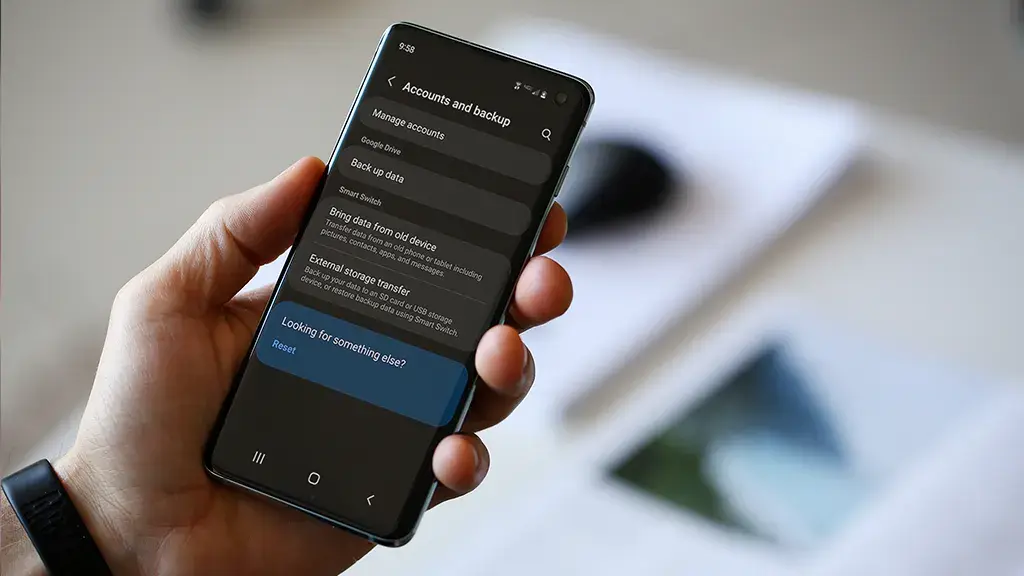
Option 1: Back up Android with Google
- Connect to Wi-Fi and plug in your charger.
- Open Settings.
- Look for Google, then Backup, or search the settings for the word backup.
- Turn on Backup by Google One.
- Tap Back up now.
Google backups usually include app data, contacts, call history, device settings and SMS messages, depending on your phone and software version. Your Google account includes 15 gigabytes of free storage shared between Gmail, Google Drive and Google Photos. If you need more, Google One offers paid storage plans, and prices vary by country.
Option 2: Back up photos with Google Photos
Install the Google Photos app, sign in, tap your profile picture and turn on Backup. Choose the upload quality and decide if you want to back up using mobile data or Wi-Fi only. Wi-Fi only is best for saving data.
Option 3: Use your phone maker’s cloud
Samsung, Xiaomi, OnePlus and other brands may include their own backup tools. For example, Samsung phones have Samsung Cloud and Smart Switch. These can be handy when moving between phones of the same brand.
Option 4: Back up Android to a computer
Connect your phone to your computer with a USB cable and choose File Transfer when asked. Open the phone in your file explorer and copy the DCIM and Pictures folders, plus any important documents, to a folder on your computer. This is simple and reliable for photos and videos.
Menu names can change with each software update. If you cannot find a setting, check your phone maker’s support pages or the official Android Help site.
The 3 2 1 Backup Rule
Technology experts often recommend a simple rule for important data.
- 3 copies: Keep at least three copies of your data. One is the original on your phone.
- 2 different types of storage: For example, cloud storage and an external hard drive.
- 1 copy offsite: Keep at least one copy in a different place, such as the cloud or a drive stored at another location.
For a normal user, this might mean photos on your phone, a cloud backup and a copy on a computer or external drive. It sounds like a lot, but once set up it is mostly automatic.
How to Back Up WhatsApp and Other Chats
Messaging apps often need their own backup settings.
- WhatsApp on iPhone: Open Settings, tap Chats, then Chat Backup and choose Back Up Now. It uses iCloud.
- WhatsApp on Android: Open Settings, tap Chats, then Chat backup and link a Google account to save the backup in Google Drive.
- Encrypted backup: WhatsApp offers an end to end encrypted backup option. If you turn it on, keep your password or key safe, because it may not be possible to recover your chats without it.
Other apps, such as Signal and Telegram, have different approaches, and some do not store full history in the cloud. Check each app’s help page and turn on any local backup features.
Do Not Forget Passwords and Two Factor Codes
Many people forget that their authenticator app is stored on their phone. If you lose the phone, you could be locked out of email, banking and social accounts.
- Save backup codes for important accounts in a safe place.
- Use an authenticator app that supports cloud backup or transfer, and follow its instructions carefully.
- Consider using a password manager so you can sign in to accounts from any device.
- Switch to passkeys where available, which are tied to your device and account.
For wider advice on locking down your phone, read our guide to protecting your privacy on your phone.
Image slot 3 goes here: an external hard drive next to a laptop (see Image Details below).
How Often Should You Back Up Your Phone?
For most people, automatic daily backup over Wi-Fi is ideal. Here is a simple schedule.
- Every day: Automatic cloud backup while charging at night
- Every week: Check that your photos are uploading and your cloud storage is not full
- Every month or after big events: Make a manual copy to a computer or external drive, for example after a holiday or a family event
- Before updates and upgrades: Always do a fresh backup before installing a major software update or switching to a new phone
How to Check Your Backup Works
A backup is only useful if you can restore it. Take a few minutes to check.
- Look at the date: On iPhone, go to Settings, your name, iCloud, then Manage Account Storage and Backups to see the last backup time. On Android, the Backup settings show when it last ran.
- Open your photo cloud: Log in on a computer and look for recent pictures.
- Do a test restore if you can: If you have an old spare phone, you can try restoring the backup to it. This is the best way to be sure.
- Check storage: If your cloud storage is full, backups can silently stop.
How to Free Up Space for Backups
If you see a message that your storage is full, try these steps.
- Delete old and duplicate photos and screenshots
- Remove large videos you do not need, or move them to a computer
- Clear old backups of phones you no longer use
- Turn off backup for apps that do not need it
- Empty the recently deleted folder in your photo app
- Consider a larger storage plan if you rely on the cloud
How to Back Up Before Selling, Trading In or Repairing Your Phone
Before you hand your phone to a shop or a buyer, follow these steps.
- Make a fresh backup and confirm it finished.
- Sign out of your accounts, including Apple ID or Google account.
- Turn off any device finding feature if the guide for your phone says to.
- Remove your SIM card and any memory card.
- Erase all content and settings, also known as a factory reset.
Never give your passcode to anyone you do not trust. Only use official repair shops or reputable stores.
Common Phone Backup Mistakes
Assuming photos are safe because they are in a gallery app
A gallery app may only show files stored on the phone. Check that they are also in a cloud service or on a computer.
Using only one backup
One copy is not enough. Cloud accounts can be hacked, locked or run out of space. Keep a second copy.
Forgetting to update the backup password
If you encrypt a backup, write down the password in a safe place.
Ignoring storage warnings
When the cloud is full, backups stop. Check your storage often.
Falling for fake backup or storage messages
Scammers send fake emails and texts claiming your cloud storage is full or your account is suspended. Never click links in unexpected messages. Open the official app or website yourself. For more on how scammers use fake voices and messages, read our guide on AI voice cloning scams.
For more phone and gadget tips, visit our Technology section.
Image slot 4 goes here: a person holding a new smartphone while restoring from a backup (see Image Details below).
Frequently Asked Questions About Backing Up Your Phone
What is the easiest way to back up my phone?
The easiest way is automatic cloud backup. On iPhone, turn on iCloud Backup. On Android, turn on Backup by Google One. Also use a photo backup service so your pictures are saved separately.
Does backing up my phone save my photos?
A full device backup may include photos in some cases, but photos are usually better protected with a dedicated photo backup such as iCloud Photos or Google Photos. Check settings to make sure uploads are complete.
How much storage do I need to back up my phone?
It depends on how many photos, videos and apps you have. Check the size of your phone storage and your last backup. If your phone has 128 gigabytes in use, you may need a large cloud plan or a computer backup.
Can I back up my phone without Wi-Fi?
You can back up to a computer using a cable, which does not need Wi-Fi. Cloud backups usually need Wi-Fi, though some apps allow backup over mobile data if you choose.
How often should I back up my phone?
Automatic daily backup is best. Make a manual backup before software updates, before travelling and before trading in or repairing your device.
Final Thoughts
Now you know how to back up your phone, you can protect your photos, chats and settings with just a few taps. Turn on automatic cloud backup, save photos to a separate service, make an occasional copy on a computer and check that everything works. A little time today can save years of memories tomorrow.
Settings and menus change as phones and apps update, so follow your phone maker’s official help page if your screens look different.
Sources and further reading: Apple Support and Android Help.