Most of us have too many accounts and too few good passwords. We reuse old favourites, add a number at the end and hope for the best. Attackers know this, which is why stolen and guessed passwords remain a leading way into email, banking and shopping accounts. The debate over passkeys vs passwords matters because passkeys promise a login that is easier and harder to steal at the same time.
This guide explains both options in plain English. You will learn how each one works, where each one is strong or weak, what official cybersecurity agencies say, and how to set up your first passkey in a few minutes. It is written for everyday users across the USA, UK, Australia and Europe.
Passkeys vs Passwords: The Quick Answer
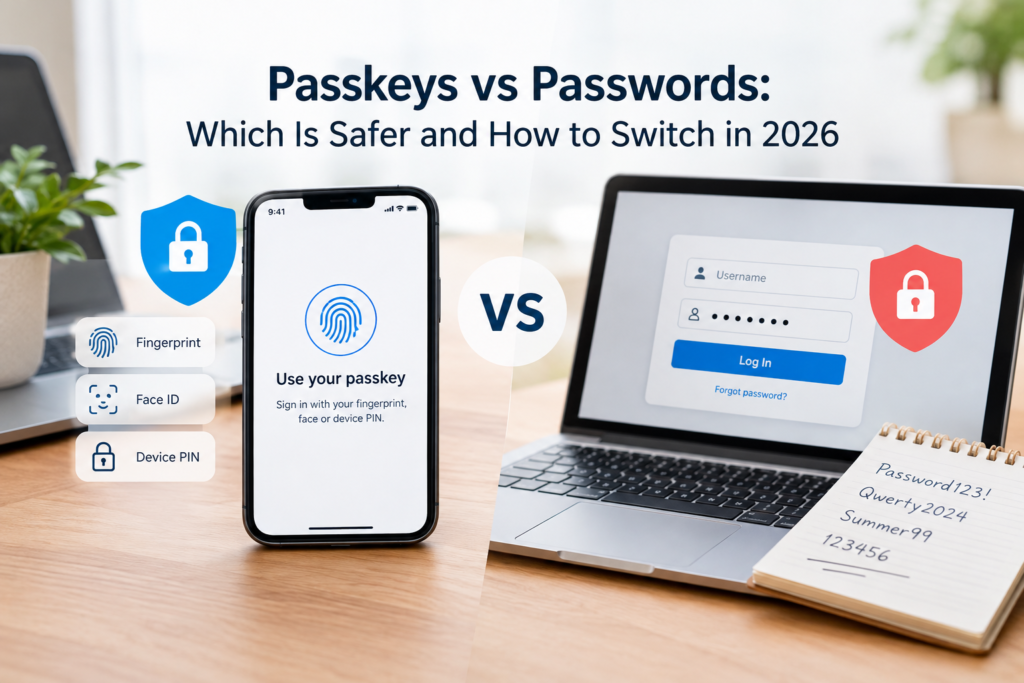
Passkeys are safer than passwords because they use a private key stored on your device, unlocked by your fingerprint, face or PIN. There is nothing to guess, reuse or type into a fake website. Passwords still work everywhere, so use passkeys wherever offered and keep strong, unique passwords with a password manager for the rest.
What Is Wrong With Passwords?
A password is a secret that you and a website both know. That simple idea creates three big problems.
First, people reuse passwords. If one site is breached, criminals try the same email and password on other services. This is called credential stuffing, and it works because reuse is so common.
Second, passwords can be tricked out of you. A fake login page that looks like your bank can capture whatever you type. This is called phishing, and the messages are getting more convincing every year.
Third, passwords are hard to manage. Strong ones are long and random, which makes them difficult to remember. That pushes people toward short, predictable choices.
Extra security steps such as text message codes help, but they are not perfect. A criminal who tricks you into entering a code on a fake page can still get in.
What Is a Passkey?
A passkey is a modern replacement for a password. Instead of a secret you type, it uses a pair of digital keys. One is a public key that the website stores. The other is a private key that stays on your device and never leaves it.
When you sign in, the website sends a challenge. Your device unlocks the private key with your fingerprint, face scan or device PIN and uses it to answer the challenge. The website checks the answer against your public key. You never type or share a secret.
Passkeys are built on open standards created by the FIDO Alliance and the World Wide Web Consortium. Many large services, including Google, Apple, Microsoft and PayPal, now support them.
How Passkeys Work in Four Simple Steps
- You create a passkey. On a supported site, you choose the option to create a passkey and approve it with your fingerprint, face or PIN.
- Your device stores the private key. The website stores only the matching public key, which is useless to a thief on its own.
- You return to log in. You choose your account and confirm with the same fingerprint, face or PIN.
- The website verifies you. It checks your device’s answer using the public key and signs you in.
Passkeys vs Passwords: Head to Head
Here is how the two compare on the points that matter most.
Security
Passwords can be guessed, reused, leaked or stolen from a website. Passkeys cannot be guessed because they are long cryptographic keys, and the website holds only the public half. A breach of the website does not hand attackers a usable login. Passkeys give you much stronger protection by design.
Phishing Protection
This is the biggest difference. A passkey is tied to the real website address. If you land on a fake site, your device will not offer the passkey, so there is nothing for a scammer to capture. Passwords have no such protection, because you can type them anywhere.
Convenience
Passkeys are usually faster. You tap, scan your face or use your fingerprint, and you are in. There is nothing to remember and nothing to retype. Passwords require typing, resetting and sometimes extra codes.
Device Loss and Recovery
This is where passwords feel simpler. You can log in from any device if you remember the password. Passkeys depend on your device or your password manager, so you need a recovery plan. Most passkeys sync through services such as iCloud Keychain, Google Password Manager or a third party password manager, which makes a new phone easy to set up. Keep a recovery method such as a backup email or recovery codes safe.
Compatibility
Passwords work on every website. Passkeys are growing quickly but are not available everywhere yet. Older devices and some smaller sites may not support them. For now, most people will use both.
Cost
Both are free for everyday users. Passkeys are built into modern phones, tablets and computers, so you do not need to buy anything. A paid password manager is optional for those who want extra features.
What Do Cybersecurity Agencies Say?
Official guidance is moving in one direction. The United States Cybersecurity and Infrastructure Security Agency promotes phishing resistant sign in methods, including passkeys, in its Secure by Demand guide for organisations buying software.
In the UK, the National Cyber Security Centre has said passkeys should now be the first choice for consumers, and that passwords are no longer strong enough on their own, according to a report from CSO Online. The same report notes that weak account recovery steps can still create risk, so the setup around a passkey matters too.
The message is clear. Passkeys are not magic, but they remove some of the most common ways accounts are stolen.
Are There Any Downsides to Passkeys?
No security tool is perfect, so it helps to know the limits.
- Not everywhere yet. Some websites and apps still require a password.
- Account recovery can be a weak point. If a scammer can talk their way into resetting your account, a passkey will not stop them. Use strong recovery options.
- Device locks matter. If someone knows your phone PIN and steals your phone, they may be able to use your passkeys. Use a strong screen lock.
- Switching ecosystems takes care. Moving from one phone brand to another can be less smooth, though password managers that support passkeys make this easier.
How to Set Up a Passkey
The steps vary a little by device, but the idea is the same. Start with your most important accounts.
Step 1: Update Your Device
Make sure your phone, tablet or computer has the latest system update. Passkeys need a fairly modern operating system and browser.
Step 2: Turn On a Screen Lock
Set a strong PIN, fingerprint or face unlock. This protects your passkeys if your device is lost.
Step 3: Open Your Account Security Settings
Sign in to a supported service such as Google, Apple, Microsoft or PayPal. Look in the security or sign in settings for an option named Passkey, Create a passkey or Use passkeys.
Step 4: Approve With Your Fingerprint, Face or PIN
Follow the prompts. Your device will ask you to confirm and will save the passkey in its secure storage, such as iCloud Keychain on Apple devices, Google Password Manager on Android and Chrome, or Windows Hello on Windows.
Step 5: Test and Back Up
Log out and log back in using the passkey to make sure it works. Save recovery codes, and check that your backup email and phone number are correct and secure.
What About Your Password Manager?
Password managers still play a big role. Many now store passkeys as well as passwords, so you can sign in across your devices. Use one to create long, random and unique passwords for every site that does not offer a passkey. Protect the manager itself with a strong main password and an extra security step.
If You Cannot Switch Yet, Make Your Passwords Stronger
You do not have to wait for passkeys to improve your security today. Try these quick wins.
- Use a long passphrase. Three or four random words are easier to remember and harder to guess than a short, complex password.
- Never reuse passwords. One password per account stops a single breach from spreading.
- Turn on two step verification. An authenticator app is stronger than text message codes.
- Watch for phishing. Type website addresses yourself or use saved bookmarks instead of clicking links in emails and messages.
Protect Your Home and Your Money Accounts
Strong logins work best alongside a secure home network. Our guide on strange household things that block WiFi signals helps you understand your home setup, and you can find more practical advice in our Technology section.
If you own digital assets, your exchange and wallet accounts are especially attractive to criminals. Enabling passkeys and strong recovery steps is a smart move, and you can follow market and security stories in our Crypto News category. Small business owners can also explore our Business page for ideas on keeping company accounts safe.
Frequently Asked Questions About Passkeys vs Passwords
Are passkeys safer than passwords?
For most people, yes. Passkeys cannot be guessed, reused or captured by a fake website, and a breached website does not leak a usable login. They still depend on a strong device lock and good account recovery steps.
What happens if I lose my phone with my passkeys on it?
If your passkeys sync through a service such as iCloud Keychain, Google Password Manager or a password manager, you can restore them on a new device after signing in to that service. Keep recovery codes and a backup email safe, and set a strong screen lock.
Can I use passkeys and passwords together?
Yes. Most websites that offer passkeys still keep password sign in as an option. Use passkeys where available and keep strong, unique passwords for everything else.
Do passkeys work on every website?
Not yet. Support is growing, and many large services already offer passkeys, but smaller websites and older apps may still need a password. Check the security settings of each account.
Are passkeys free?
Yes. Passkeys are built into modern phones, tablets, computers and browsers at no extra cost. You only pay if you choose a paid password manager.
Final Thoughts
The passkeys vs passwords question has a clear direction. Passkeys offer stronger protection against phishing and password reuse, and they are quicker to use. Passwords will remain for a while, so keep them strong and unique. Start with your email, banking and main shopping accounts, turn on passkeys where offered and set up reliable recovery options. A few minutes of setup can protect you for years.