Every time you search, shop, stream or scroll, you leave a trail of data. Most of it seems harmless, but together it can reveal where you live, what you buy, who you talk to and even what you worry about. If you want to protect your online privacy, you do not need to be a technology expert or give up the internet. A handful of simple habits will reduce your risk a great deal.
This guide is written for everyday users in the USA, UK, Australia and Europe. It explains what online privacy really means, then walks you through nine practical steps, from passwords and phone settings to home WiFi and the new questions raised by AI tools. At the end you will find a 30 minute checklist you can complete this weekend.
The Short Answer: How to Protect Your Online Privacy
To protect your online privacy, use a unique password for every account with a password manager, turn on two factor authentication, keep your devices updated, review app and social media privacy settings, avoid public WiFi for sensitive tasks or use a trusted VPN, and think carefully before sharing personal details with websites or AI tools.
Each of these steps is explained below in plain language, with examples you can follow on your phone or computer.
Why Online Privacy Matters
Privacy and security are related, but they are not the same thing. Security keeps criminals out of your accounts. Privacy controls who can collect, use and share information about you, including companies, advertisers and apps. You need both.
Data breaches are common. When a company is hacked, email addresses, passwords and personal details can leak and be reused by scammers. Companies also collect data legally to build profiles for advertising. Laws such as the General Data Protection Regulation (GDPR) in the European Union, the UK Data Protection Act, the California Consumer Privacy Act and the Australian Privacy Act give people rights to see, correct or ask for deletion of their data, although the details vary by place.
Good privacy habits protect you from three main problems: fraud and identity theft, targeted scams, and unwanted tracking. None of them requires special software or deep technical knowledge to reduce.
How to Protect Your Online Privacy: Start With Your Passwords
Weak and reused passwords remain one of the biggest risks. If you use the same password on two sites and one is breached, criminals can try it everywhere else, a trick known as credential stuffing.
Use long, unique passwords
Aim for a password or passphrase of at least 14 to 16 characters for each account. The UK National Cyber Security Centre suggests combining three random words, which is easy to remember and hard to guess. Avoid names, birthdays and pet names, because they are easy for others to find.
Use a password manager
You cannot remember dozens of unique passwords, and you should not try. A password manager creates, stores and fills them in for you, protected by one strong master password. Options are built into many phones and browsers, and dedicated apps are widely available. Choose one with good independent reviews from a reputable company.
Check for breaches
Free services such as Have I Been Pwned let you enter your email address to see whether it appeared in a known breach. If it did, change the password for that site and anywhere else you used it. For beginner friendly guidance, the US Cybersecurity and Infrastructure Security Agency (CISA) runs the Secure Our World programme, and the UK National Cyber Security Centre publishes top tips for staying secure online.
Turn On Two Factor Authentication
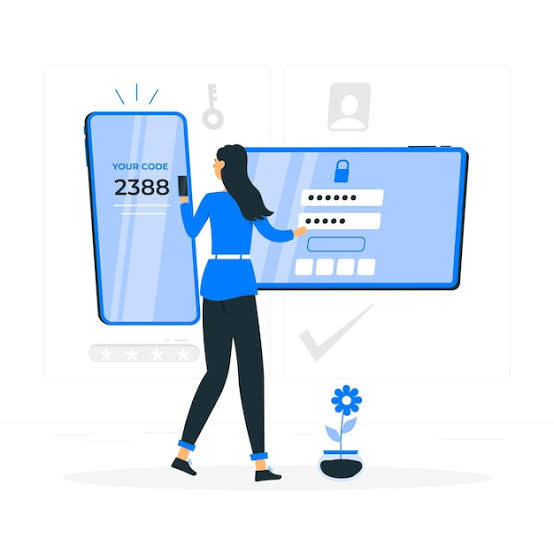
Two factor authentication, often shortened to 2FA, asks for a second proof of identity, such as a code, in addition to your password. Even if a criminal learns your password, they cannot easily get into your account.
Choose the strongest option
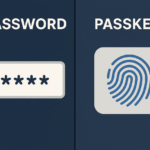
Text message codes are better than nothing, but an authenticator app or a hardware security key is safer, because criminals can sometimes trick or hijack phone numbers. Many services now offer passkeys, which replace passwords with a secure sign in using your fingerprint, face or device PIN. Use them wherever they are available.
Protect your key accounts first
Start with your email, banking, cloud storage and mobile phone accounts. Your email is the master key because it is used to reset other passwords, so it deserves your strongest protection.
Save your backup codes
When you set up 2FA you usually receive backup codes. Store them in your password manager or another safe place, so you can still log in if you lose your phone.
Keep Your Devices and Apps Updated
Software updates fix security holes that criminals actively use. Turn on automatic updates for your phone, computer, apps and browser, and restart when you are asked to. Replace devices that no longer receive updates, because they cannot be properly protected.
Do not forget smart home devices such as cameras, speakers and routers. They connect to your network all day and are easy to overlook. If you enjoy gadgets and want safe, practical advice, our Technology section has regular guides and tips.
Lock Down Your Phone
Your phone holds your messages, photos, banking apps and location history. A few settings make a big difference.
Review app permissions
Does a torch app need your contacts? Go through your app list and remove permissions that make no sense. Choose location access for “only while using the app” where you can, and turn off microphone and camera access for apps that do not need them.
Limit ad tracking
Both iPhone and Android let you reduce tracking across apps. On iPhone, look for the tracking setting under Privacy and Security. On Android, you can delete or reset your advertising ID in the privacy settings. Menu names change between versions, so check your device’s help pages if you cannot find them.
Secure the screen
Use a PIN of at least six digits or a strong passcode, plus fingerprint or face unlock. Turn on the find my device feature so you can locate or erase a lost phone. Set the screen to lock after a minute or less.
Delete what you do not use
Old apps can keep collecting data in the background. Delete apps you have not opened in months, and download apps only from official stores.
Make Your Browser Work for You
Your browser is your window to the web, so it is worth setting up with care. Popular browsers such as Firefox, Safari, Brave and Chrome all offer privacy settings. Several of them block many trackers by default, and others let you switch the protection on in a few clicks.
Tighten your settings
Block third party cookies, turn on tracking protection and clear cookies from time to time. If you share a device with other people, turn off saving payment cards in your browser.
Be careful with extensions
Extensions can read what you do online. Install only a few from trusted developers with many reviews, and remove any that you no longer use.
Know what private browsing does
Private or incognito mode stops your device from saving history and cookies after you close the window. It does not hide your activity from websites, your employer, your school or your internet provider. Think of it as a tool for keeping things off a shared device, not as a cloak of invisibility.
Secure Your Home WiFi and Use Public WiFi Safely
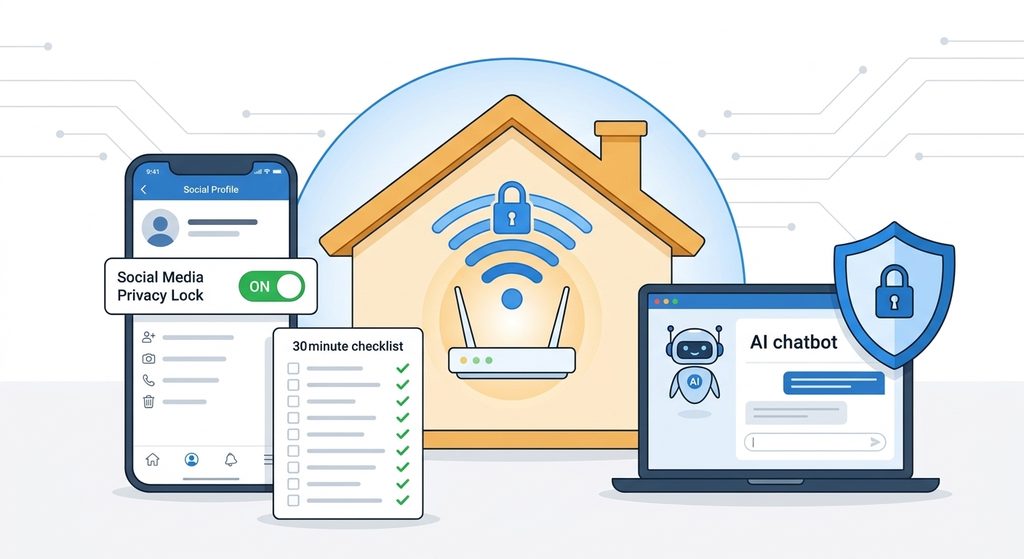
Your home network connects every device you own, so it is worth protecting.
Secure your home network
Change the default router password and network name. Use WPA3 security if your router supports it, or WPA2 if it does not, with a long passphrase. Install router updates when they are offered, and set up a guest network for visitors and smart devices. Place your router in a central, open spot. Our guide to WiFi troubles and the strange household things that block signals explains how placement affects your connection.
Use public WiFi with care
Cafes, airports and hotels offer convenience, but you cannot know who runs the network or who else is on it. Avoid banking and shopping on public WiFi, or switch to your phone’s mobile data for sensitive tasks. Check that websites use HTTPS, shown by a padlock symbol. If you travel often, you will find useful ideas in our Travel section.
Understand what a VPN can and cannot do
A virtual private network (VPN) encrypts the traffic between your device and the VPN server, which helps on public networks. It does not make you anonymous, and your VPN provider can see your activity, so choose a reputable provider with a clear privacy policy and independent audits. Be wary of free VPNs, which may earn money by collecting your data.
Share Less on Social Media
Social media is one of the biggest sources of personal information about you.
- Set your accounts to private where possible and review who can see your posts, tag you or find you by phone number.
- Turn off location tagging for photos, and think before posting holiday plans in real time, because it tells people your home is empty.
- Avoid sharing details such as your full birthday, home address, children’s school or photos of ID badges and boarding passes.
- Review apps connected to your accounts through “log in with” buttons and remove the ones you no longer use.
- Search for your own name now and then to see what others can find.
Use AI Tools Safely
AI chatbots and assistants are helpful for writing, planning and learning, but they raise new privacy questions. A good rule is to treat anything you type as a message that might be stored.
- Do not paste passwords, bank details, medical records, ID numbers or confidential work documents into an AI tool.
- Read the privacy settings. Many services let you turn off chat history or opt out of your conversations being used to improve their models. Settings differ between providers and change over time, so check them regularly.
- Check your employer’s rules before using AI tools for work tasks.
- Be careful with voice recordings and photos you upload, because they can contain personal details about you and other people.
- Watch for AI powered scams. Criminals can now clone voices and write very convincing messages. Agree a family code word, so you can verify a surprise call asking for money.
Spot Phishing and Scams
Phishing means a fake message that tricks you into sharing information or clicking a harmful link. It remains one of the most common ways accounts are taken over.
Common warning signs include urgent threats, unexpected prizes, requests for passwords or codes, spelling errors, and links that do not match the company’s real website. When in doubt, slow down. Do not click the link. Instead, open the official website or app yourself and check for messages there. Never share one time codes with anyone, even if they claim to be from your bank.
If you own cryptocurrency, extra care is needed because transactions are very hard to reverse. Never share your recovery phrase with anyone, and treat unexpected offers with suspicion. For market news and safety reminders, see our Crypto News section.
Know Your Data Rights
In many places you can ask a company what data it holds about you, correct mistakes or request deletion. In the European Union and the UK, GDPR rules give you these rights. Several US states and Australia offer similar options. Look for a privacy or data request page on a company’s website, or contact its data protection team by email. It is not always quick, but it is your right.
Your 30 Minute Privacy Checklist
You do not have to do everything at once. Work through this list over a weekend.
- Install a password manager and change the passwords for your email, bank and main social accounts.
- Turn on two factor authentication for those same accounts.
- Run all pending updates on your phone and computer, and switch on automatic updates.
- Review app permissions on your phone and delete apps you do not use.
- Change your router password and name, and check that your WiFi uses WPA2 or WPA3.
- Set your social media accounts to private and turn off photo location tagging.
- Check your email address on a breach checking service and act on the results.
- Review the privacy settings in any AI tools you use.
- Save backup codes and recovery details in a safe place.
Frequently Asked Questions About Online Privacy
Is it possible to be completely private online?
No. Using the internet always involves sharing some data. The goal is to reduce unnecessary sharing, control what you can and protect your accounts from criminals.
Do I need a VPN at home?
Most people do not need one at home if their router is secure and they use HTTPS websites. A VPN is more useful on public WiFi or when you want to hide your activity from the local network. It will not protect you from phishing or weak passwords.
Is incognito mode safe and private?
It is private only on your device, because it does not save your history or cookies. Websites, employers, schools and internet providers may still see your activity. It is not a replacement for good browser settings.
What is the safest way to store passwords?
A reputable password manager protected by a long master password and two factor authentication is the safest option for most people. Avoid keeping passwords in notes apps, spreadsheets or on paper left near your computer.
Is it safe to use AI chatbots?
It can be, if you avoid sharing sensitive information and review the privacy settings. Treat chats as potentially stored, do not enter passwords or private documents, and follow your workplace rules.
Final Thoughts
You can protect your online privacy without becoming an expert or giving up the services you enjoy. Start with strong, unique passwords and two factor authentication, keep your devices updated, tighten your phone and browser settings, secure your home WiFi, share less on social media and think before you type into AI tools. Small steps taken today build a much safer digital life for tomorrow.