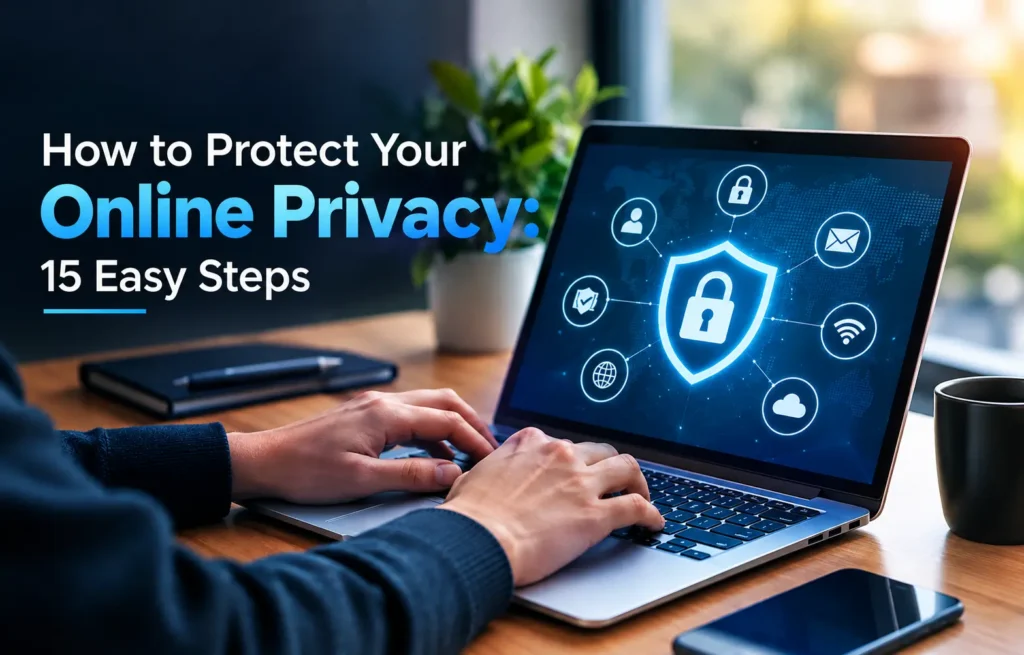
Every time you browse, shop, stream or scroll, you leave a trail of data. Companies collect it, criminals try to steal it and most of us have no idea how much is out there. The good news is that you do not need to be a tech expert to take control. This guide shows you how to protect your online privacy with clear, practical steps that work on phones, laptops and smart devices, whether you live in the USA, UK, Australia or Europe.
Quick answer: To protect your online privacy, use a unique strong password for every account, store them in a password manager, turn on two step verification, keep your devices updated, review app permissions, avoid clicking unexpected links and limit what you share on social media. A VPN can add protection on public networks but is not a magic shield.
Why Online Privacy Matters More Than Ever
Privacy is about control. It means choosing who can see your information, how it is used and how long it is kept. Without it, you face three main risks.
Data collection
Websites, apps and advertisers collect details such as your location, search history and interests. This information builds a profile that is used to show you targeted ads. Some of it is sold or shared with partners, often through settings that most people never read. If you are curious how advertisers use this information, our Marketing section explores how brands reach audiences online.
Data breaches
Companies of every size suffer breaches. When this happens, email addresses, passwords and other personal details can be leaked. Criminals then try those details on other websites, because many people reuse the same password. One leak can quickly become many problems.
Scams and fraud
Scammers use personal details to make fake messages look real. They may pretend to be your bank, a delivery company or a family member. The more they know about you, the more convincing they sound. Protecting your privacy is one of the best ways to reduce scam risk.
The UK National Cyber Security Centre offers helpful advice on staying secure online, and many of its tips appear in this guide.
How to Protect Your Online Privacy: Start With Strong Passwords
Passwords are the front door to your digital life. A weak or reused password is like using the same key for your house, car and office.
Use three random words
Long passwords beat short complicated ones. The NCSC recommends joining three random words to create a password that is long, easy to remember and hard to guess. For example, a combination such as “ladder pencil river” is stronger than a short word with a number at the end. Do not use obvious words such as your pet’s name, your birthday or your favourite team.
Use a different password for every account
If one site is breached, a unique password stops criminals from opening your other accounts. This is the most important password rule. Pay extra attention to your main email account, because it can be used to reset the passwords on almost everything else.
Use a password manager
Nobody can remember dozens of long, unique passwords. A password manager does it for you. It creates strong passwords, stores them in an encrypted vault and fills them in when you sign in. You only need to remember one strong master password. Good options include built in managers on Apple, Google and Microsoft devices, as well as well known apps from trusted providers.
Try passkeys
Passkeys are a newer way to sign in. They use your fingerprint, face or device PIN instead of a typed password, and they are much harder to steal through fake websites. Many major services now offer them. If a site gives you the option, it is worth turning on.
Turn On Two Step Verification
Two step verification, sometimes called multi factor authentication, adds a second check after your password. Even if a criminal steals your password, they cannot get in without the second step.
Which methods are best
- Authenticator apps, which create a short code on your phone
- Security keys, which are small physical devices you plug in or tap
- Passkeys and device based approvals
- Text message codes, which are better than nothing but less secure than the options above
Start with your most important accounts
Turn it on first for email, banking, shopping, social media and cloud storage. Then work through other accounts over time. Save your backup codes in a safe place, such as inside your password manager, so you do not get locked out if you lose your phone.
Spot Phishing and Scam Messages
Phishing is when criminals send messages that look real to trick you into giving away passwords, bank details or money. It can arrive by email, text message, phone call, social media or even a QR code.
Common warning signs
- A sense of urgency, such as “act now or your account will close”
- A message that asks for passwords, PINs or full card numbers
- An unexpected prize, refund or parcel notice
- Spelling mistakes or an odd sender address
- A link that does not match the website it claims to come from
- A request to pay in gift cards or crypto
What to do instead
Pause before you click. Do not use links in the message. Open the official app or type the website address yourself. If a message claims to be from someone you know, call them on a number you already trust. Report scams to your email provider, your bank and your national fraud service. In the US you can learn more from the Federal Trade Commission consumer advice pages.
Lock Down Your Phone
Your phone holds your photos, messages, banking and location. A few simple settings make a big difference.
Set a strong screen lock
Use a six digit PIN or longer, or a passphrase, in addition to fingerprint or face unlock. Avoid simple patterns and obvious numbers such as 123456 or your birth year. Turn on automatic locking after a short time.
Review app permissions
Many apps ask for more access than they need. A torch app does not need your contacts. A game does not need your microphone. Go to your phone settings, open the privacy or permissions section and check which apps can use your camera, microphone, location, photos and contacts. Switch off anything that does not make sense, and choose “only while using the app” for location when possible.
Limit location sharing
Location data shows where you live, work and travel. Turn off precise location for apps that do not need it, and remove old location history. Be careful about sharing live location on social platforms.
Keep software updated
Updates fix security holes that criminals know about. Turn on automatic updates for your phone, apps and computer. Delete apps you no longer use.
Turn on find my device
Both Apple and Android offer tools to locate, lock or erase a lost phone. Switch them on before you need them.
For more phone and gadget advice, browse our Technology category.
Improve Your Browser and Search Privacy
Your browser is one of the busiest places for tracking. Small changes here protect you every day.
Check your browser settings
Open the privacy settings in Chrome, Safari, Firefox, Edge or your browser of choice. Block third party cookies, turn on tracking protection and choose to send a do not track request where available. Clear cookies and history from time to time.
Consider a privacy focused search engine
Some search engines, such as DuckDuckGo, say they do not store personal search histories. Others let you pause or auto delete your activity. Review the settings in your main account, especially if you are signed in while you search.
Use extensions wisely
Content blockers can reduce ads and trackers. However, every extension can see some of your browsing, so install only a few from trusted sources. Remove any you no longer use.
Look for the padlock, but do not trust it blindly
The padlock symbol means the connection to the site is encrypted. It does not mean the site itself is honest. Always check the web address carefully before entering payment details.
Do You Need a VPN?
A VPN, or virtual private network, encrypts your internet traffic and hides your location from the sites you visit. It can be useful, but it is often oversold.
When a VPN helps
- On public WiFi in cafes, hotels and airports
- When you want to hide your browsing from your internet provider
- When travelling and using local networks you do not trust
What a VPN does not do
A VPN does not make you anonymous. It does not stop you from falling for phishing, and it does not protect you if you sign in to accounts that track you. You are also placing trust in the VPN company instead of your internet provider, so choose a well reviewed provider with a clear privacy policy. Be careful with free VPNs, as some earn money by collecting your data.
Secure Your Home Network
Your home router is the gateway for every device you own. If it is weak, everything behind it is at risk.
- Change the default router name and admin password
- Use WPA3 or WPA2 security and a long WiFi password
- Keep the router firmware updated
- Set up a separate guest network for visitors and smart devices
- Turn off remote management if you do not need it
A stronger network also helps performance. If your signal keeps dropping, read our guide on strange household things that can block WiFi signals for simple fixes that can improve both speed and reliability.
Stay Safe on Public WiFi
Public networks are convenient, but you cannot know who else is using them or how well they are managed.
- Avoid banking and shopping on public WiFi, or use your phone’s mobile data instead
- Check the exact network name with the venue, because criminals create fake lookalikes
- Turn off automatic connection to open networks
- Use a VPN if you must handle sensitive tasks
- Sign out and forget the network when you finish
Review Your Social Media Settings
Social platforms hold a great deal of personal information. They also make it easy to share more than you intend.
Tighten your audience
Set your profile and posts to friends only where possible. Check who can see your friend list, birthday, phone number and email. Limit who can tag you in photos.
Think before you post
A photo of your boarding pass, house number, school uniform or new debit card can give criminals useful details. Avoid posting travel plans in real time. Share holiday pictures after you return.
Check connected apps
Over time you may have used your social account to sign in to many other services. Review the list of connected apps and remove those you no longer use.
Reduce Your Data Footprint
The less data that exists about you, the less can be leaked, sold or misused.
Close accounts you do not use
Search your email for old welcome messages and delete accounts you have forgotten. Before closing, download anything you want to keep.
Use your legal rights
Privacy laws give you some control, depending on where you live. In the European Union and the UK, data protection law lets you ask companies for a copy of your data and, in many cases, to delete it. California has similar rights under its consumer privacy law. Australia protects personal information through the Privacy Act and the Australian Privacy Principles. Look for a privacy or data request form on company websites.
Use a separate email for sign ups
A second email address for shopping and newsletters keeps your main inbox cleaner and limits the damage if that address is leaked. Many email providers also offer hide my email or alias features.
We also explain how this website handles information in our privacy policy.
Smart Devices and AI Tools
Smart speakers, cameras and TVs can be useful, but they also collect data.
- Change default passwords on every smart device
- Review voice assistant recordings and delete old ones
- Turn off microphones and cameras when you do not need them
- Place indoor cameras away from private spaces
- Install updates as soon as they appear
When you use AI chat tools, avoid pasting passwords, medical records, bank details or confidential work files. Treat these tools like a public space unless the provider clearly explains how your data is stored. Check the settings to see whether you can opt out of your chats being used for training.
What to Do After a Data Breach
If a company tells you your data has been leaked, act quickly but calmly.
- Change the password for that account and for any other account where you used it
- Turn on two step verification
- Watch your bank and card statements for unusual activity
- Be extra careful with calls and messages that mention the company
- Consider a credit freeze or fraud alert if financial details were exposed, where your country offers one
You can check whether your email appears in known breaches using trusted tools such as Have I Been Pwned. If you ever lose money to fraud, contact your bank and national fraud reporting service immediately.
A Simple 30 Minute Privacy Checkup
Set a timer and work through this list today.
- Minutes 1 to 5: Update your phone and computer
- Minutes 6 to 10: Install or open your password manager and change your email password
- Minutes 11 to 15: Turn on two step verification for email and banking
- Minutes 16 to 20: Review app permissions on your phone
- Minutes 21 to 25: Tighten your social media privacy settings
- Minutes 26 to 30: Check your home router name and password
Repeat this checkup every few months. Privacy is not a one time task. It is a habit.
Frequently Asked Questions
What is the easiest way to protect your online privacy?
The easiest steps are using a password manager, turning on two step verification and keeping your devices updated. These three habits block many common attacks and take less than an hour to set up.
Is a VPN enough to keep me private online?
No. A VPN encrypts your traffic and hides your location from websites, which helps on public WiFi. It does not stop phishing, malware or tracking by accounts you sign in to. Use it as one layer alongside strong passwords and updates.
How do I know if my password has been leaked?
Use a trusted breach checking tool such as Have I Been Pwned, or check the security features in your password manager or browser. If your password appears in a leak, change it immediately and never reuse it.
Are free apps really free?
Many free apps earn money from advertising and data collection. This is not always harmful, but you should read the permissions, check the privacy settings and avoid apps that ask for access they do not need.
Can I stop all tracking online?
You cannot stop everything, but you can reduce it a great deal. Block third party cookies, limit app permissions, use privacy settings in your accounts and avoid sharing unnecessary personal details.
Final Thoughts
Learning how to protect your online privacy is not about fear. It is about making a few smart choices and sticking to them. Strong unique passwords, two step verification, regular updates, careful sharing and a healthy dose of caution with unexpected messages will protect you from most common threats. Start with the 30 minute checkup today, and revisit it every few months.
For more guides on devices, apps and safe technology habits, visit our Technology category.