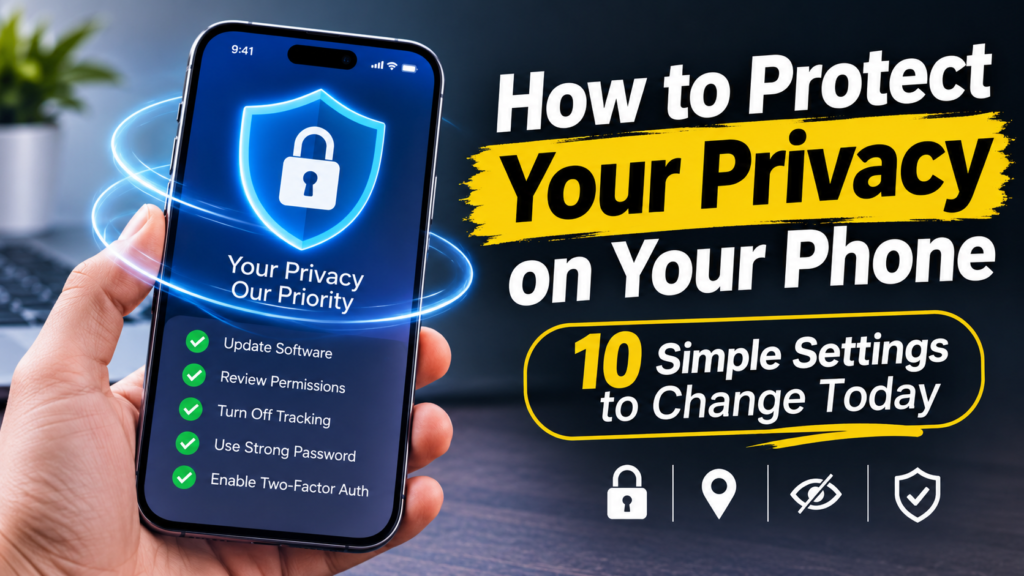
Your phone holds your messages, photos, banking apps, work emails and a record of where you go. That makes it one of the most private things you own. Learning how to protect your privacy on your phone does not require technical skills. A few changes to your settings can reduce how much data apps collect and make it much harder for criminals to get in.
Quick answer: To protect your privacy on your phone, update your software, review app permissions, turn off ad tracking, limit location sharing, use a strong screen lock and switch on two step verification for your key accounts. These steps take under an hour and reduce the amount of data apps and attackers can reach.
Below are 10 simple settings you can change today on an iPhone or an Android phone. For more practical advice, visit our Technology section.
Why Phone Privacy Matters
Most apps ask for access to things such as your location, camera, microphone and contacts. Some of that access is needed for the app to work. Some of it is not. Advertising companies also build profiles of your habits across apps and websites, and criminals use fake messages and weak passwords to take over accounts.
Government security agencies share a similar message. The UK National Cyber Security Centre lists updating devices, using strong passwords and turning on two step verification among its top tips, which you can read on its page about staying secure online. In the United States, the Cybersecurity and Infrastructure Security Agency promotes the same basics through its Secure Our World campaign.
How to Protect Your Privacy on Your Phone: 10 Settings to Change Today
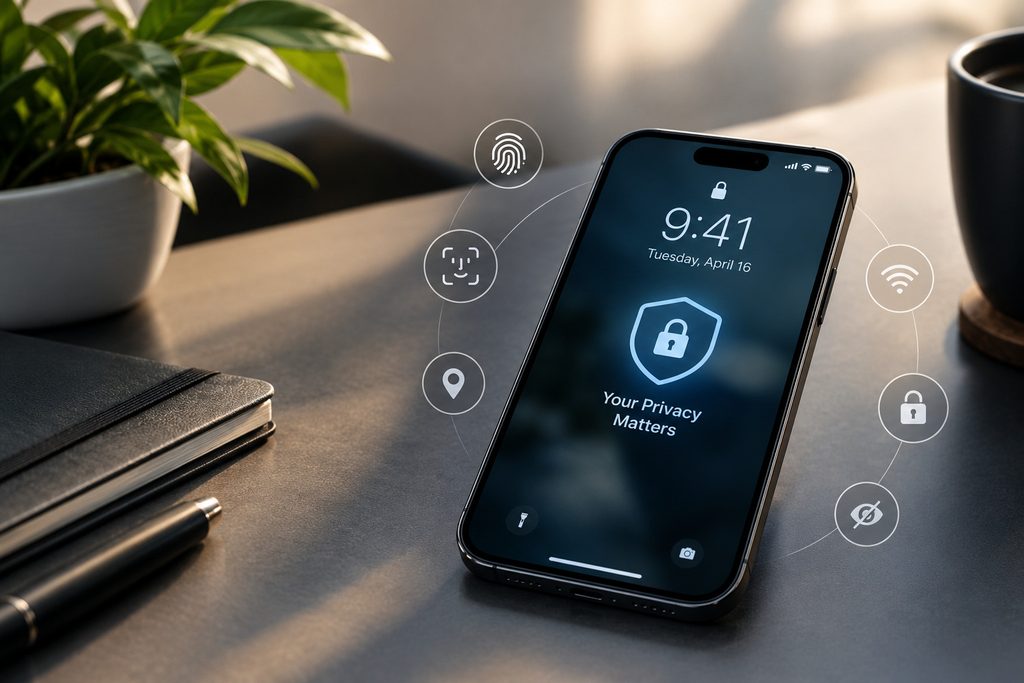
Menu names change between phone brands and software versions, so use the search box in your Settings app if you cannot find an option.
1. Keep your software up to date
Updates fix security flaws that attackers can use. Turn on automatic updates for both your phone system and your apps. If your phone is so old that it no longer receives updates, consider replacing it, because it may be at higher risk.
2. Use a strong screen lock
A short code that someone can guess or watch you type is a weak lock. Choose a PIN of at least six digits, or a longer passcode, and add fingerprint or face unlock for convenience. Set your screen to lock after 30 seconds to one minute so it cannot be used if you put it down.
3. Review app permissions
Go through your apps and check what each one can access. On an iPhone, open Settings and look for Privacy and Security. On most Android phones, open Settings and look for Security and privacy, then the permission manager. Ask yourself a simple question for each one. Does this app really need my camera, microphone, contacts or photos? If not, switch the permission off.
4. Limit location sharing
Location data reveals where you live, work and spend your time. Set most apps to share your location only while you are using them, or to never share it. Turn off precise location for apps that only need your general area, such as a weather app. Be careful with apps that ask for location all the time.
5. Turn off ad tracking
On an iPhone, you can stop apps asking to track you across other apps and websites in the Privacy and Security settings. On Android, you can delete or reset your advertising ID and opt out of ad personalisation in the Ads or Privacy settings. You will still see ads, but they will use less of your personal data.
6. Delete apps you do not use
Every app on your phone is one more company that may hold your data and one more possible security risk. Delete anything you have not used in months. Download apps only from the official app store for your phone, and check the developer name and reviews before you install.
7. Turn on two step verification
Two step verification, also called multi factor authentication, asks for a second proof such as a code from an app when you log in. It protects you even if someone learns your password. Start with your email, banking, cloud storage and social media accounts. An authenticator app is generally safer than text messages. If you use crypto wallets or exchange apps, treat this as essential, and see our Crypto News section for market updates and safety reminders.
8. Use a password manager
Reusing passwords is one of the most common mistakes. A password manager creates and stores a different strong password for every site, so you only need to remember one main password. Many phones have a built in manager, and trusted standalone apps are also available. Keep the main password long and unique.
9. Be careful on public WiFi
Free WiFi in airports, cafes and hotels is convenient, but you cannot be sure who runs it. Avoid logging in to banking or other sensitive accounts on public networks. Use your mobile data instead, or a trusted VPN from a reputable company. If you travel often, our Travel section has useful planning ideas. At home, a weak signal can tempt you to join open networks, so see our guide to household things that block WiFi signals.
10. Hide lock screen previews and turn on Find My Device
Message previews on your lock screen can show private information to anyone nearby. Set notifications to hide content when the phone is locked. Then turn on the Find My feature on iPhone or Find Hub on Android, and make sure you back up your data. If your phone is lost or stolen, you can lock it, track it or erase it remotely.
Which Settings Matter Most?
If you only have 10 minutes, start with these three:
- Install any waiting updates and switch on automatic updates.
- Turn on two step verification for your email and banking.
- Check location, camera and microphone permissions for your most used apps.
These cover the most common ways accounts get taken over and the most common ways apps collect extra data.
Warning Signs Your Phone May Be at Risk
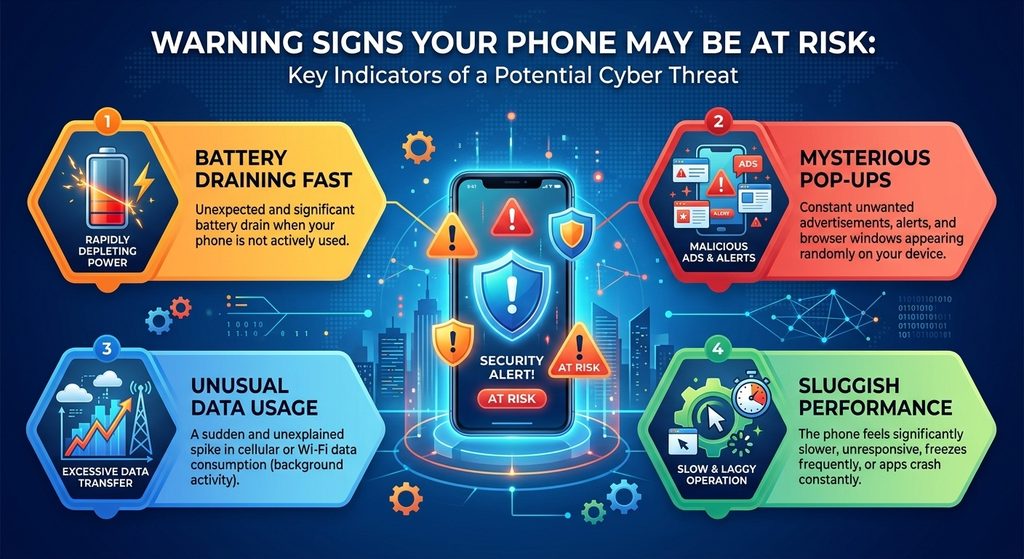
No single sign proves a problem, but be careful if you notice any of these:
- Your battery drains much faster than usual.
- Apps appear that you did not install.
- You see strange pop up ads or your browser keeps redirecting you.
- You receive security codes you did not request.
- Your accounts show logins from places you do not recognise.
If this happens, update your software, delete unknown apps, change your passwords from a safe device and contact your bank or mobile provider if money is involved. For a serious problem, contact your phone maker or a trusted repair service.
Your Data on This Website
Privacy matters for websites too. You can read how we handle reader information in our Privacy Policy.
Final Thoughts
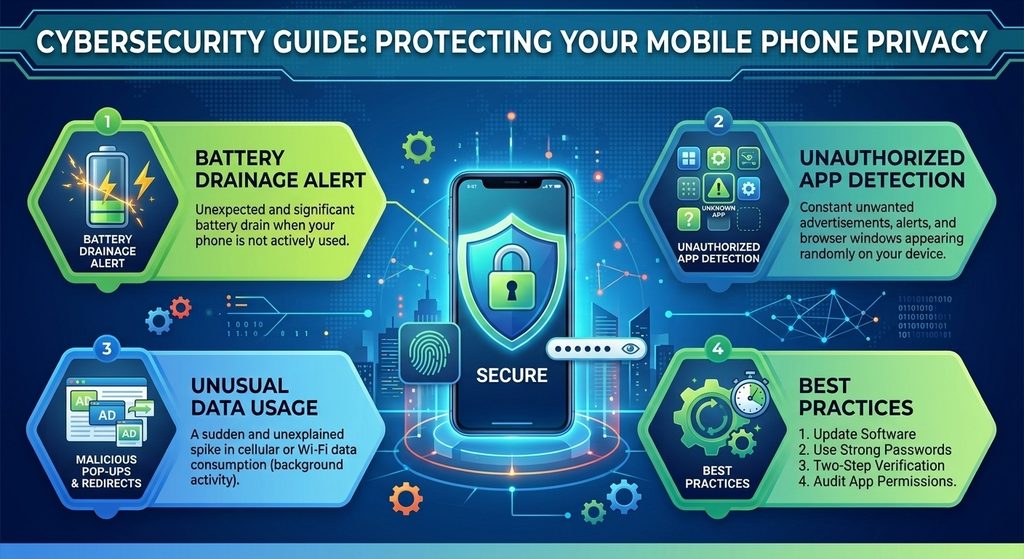
Good phone privacy comes from a handful of habits rather than one perfect tool. Keep your software current, use strong and different passwords, switch on two step verification and think carefully before giving apps access to your location, camera and contacts. Set aside 30 minutes this week to work through the list. You will give away less data and make your phone a much harder target.
Frequently Asked Questions
How do I stop apps tracking me on my phone?
Open your privacy settings and turn off ad tracking. On an iPhone, stop apps asking to track you across other apps and websites. On Android, delete your advertising ID and opt out of ad personalisation. Also set location access to only while using the app, or to never.
Is my phone listening to me?
There is no simple answer. Some apps can access the microphone if you allow it, so check your microphone permissions and switch it off for apps that do not need it. Both iPhone and Android show a small indicator when the microphone or camera is in use.
What is the safest way to protect my accounts?
Use a long, unique password for each account, store them in a password manager and turn on two step verification. An authenticator app is generally a stronger choice than text message codes.
Is public WiFi safe to use?
Public WiFi carries more risk because you cannot control the network. Avoid banking and other sensitive logins on it. Use mobile data or a trusted VPN when you need to handle private information.
How often should I update my phone?
Install updates as soon as they are available, or turn on automatic updates. Security fixes are often included, and delaying them leaves known weaknesses open.